What is the Label Broker® feature?
The Label Broker feature supports customers who would like to ship with USPS but do not have access to a printer or shipping labels. You can print pre-paid and No Postage Necessary (e.g. Returns) shipping labels at most Post Office® locations and at USPS.com. For further information and locations, see "Where can I find Label Broker printers?"
If I want to print my label at a Post Office location, what do I need to bring?
You need to bring the the QR Code® or the 8-10 character Label Broker ID supplied by the Label Provider. Either can be used to print the prepaid label. Also, the Label Broker ID can be written on the package for mailing.
Can I print a Label Broker label at a Post Office location then take it home?
No. The Label Broker label is designed for the label to be affixed to the package at the Retail Window.
Can I add additional services to a Label Broker label?
No.
What If I did not receive a QR Code email?
- Check your email's spam or junk folders for the email containing the QR Code.
- If the email can't be found, request the label provider to resend the email or provide the 8-10 character Label Broker ID, which can be used instead of the QR Code.
- If the label provider is Click-N-Ship®, the Label Broker ID can be found on the Label Details page.
Where can I find Label Broker printers?
Most automated USPS Post Office® locations have Label Broker printers. To be certain if a specific location supports Label Broker, you can:
- Access USPS.com.
- Click on either the Locations or Find USPS Locations link.
- On the Find USPS Locations page:
- Enter your City and State, or ZIP Code™.
- Select Post Office as the Location Type(s).
- Click Filter > Mailing Services and check either Label Broker® Retail and/or Label Broker® Self-Service.
- Apply the Filters.
- Click Search to see a list of Post Offices local to the location you entered that has Label Broker service available at the Post Office retail counter or for self-service.
Labels may also be printed through USPS.com and at Automated Parcel Drops.

Can I use the Label Broker feature with the Click-N-Ship® application?
Yes. The Label Broker feature, which allows customers to have a shipping label printed at a Post Office location, is a shipping option for Click-N-Ship (CNS) customers.
|
See below for instructions on making and paying for a shipping label using CNS and printing the label at a Post Office location:
|
|
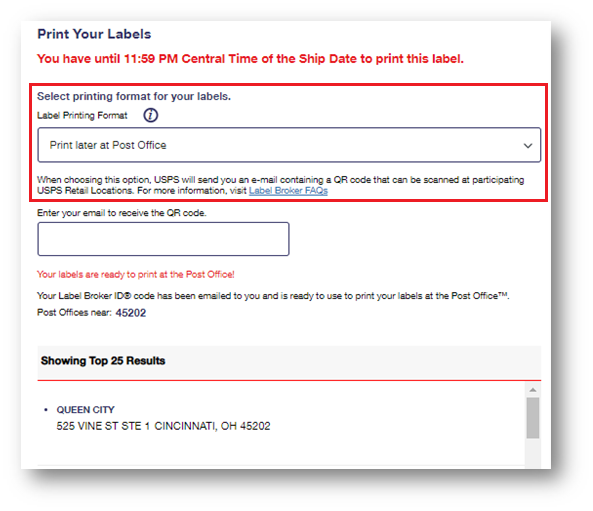
The Label Broker option "Print later at Post Office" appears as a selection under "Label Printing Format" after the checkout process is complete on the Click-N-Ship Payment Confirmation page (see screenshot to the right). When choosing the option, you will receive an email containing a Label Broker ID® (QR Code followed by 8-10 characters). You will need to bring the the QR Code or the 8-10 character Label Broker ID along with the package to the Post Office location.
Note: If you can't find the email:
- Be sure to check your spam or junk folders
- Go to the Click-N-Ship Label Details page, find the Label Broker ID, and use that to print postage at a Post Office.
| 
Click image for larger version
|
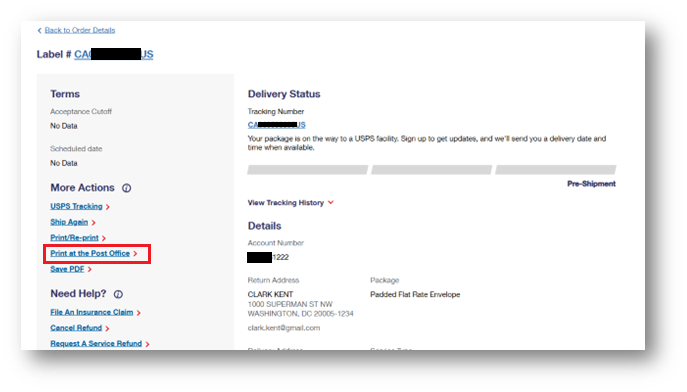
The Click-N-Ship Label Details page looks like the following:
|
If Label Broker has not been selected, the "Print at the Post Office" option will be available under "More Actions".
Click image for larger version
|
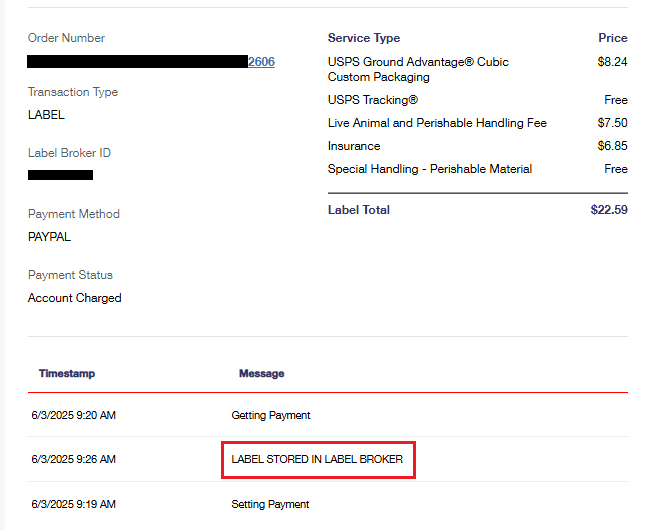
If Label Broker had been selected, you will see the message "LABEL STORED IN LABEL BROKER" in the Label History table at the bottom of the Label Details page.
Click image for larger version
|
What do I need to know about using the Label Broker feature in the Click-N-Ship® application?
- Any domestic CNS label is eligible as long as either:
- It doesn't require a customs form (e.g. military packages requiring customs forms are not eligible).
- The Packaging Option is not "First-Class Mail Letter or Envelope".
- You will receive an email with the QR Code followed by 8-10 characters to be shown at Label Broker printers and locations
- Either the QR Code or the 8-10 character Label Broker ID can be used to print the shipping label. You do not require both to print a label.
- If you purchase multiple orders of labels using Label Broker, you can store up to 11 labels in a single QR code. However, if there are more than 11 labels for a single transaction, the Label Broker feature will not be shown as an option.
- If you choose to print the label yourself during Click-N-Ship checkout and change your mind, you can go into the CNS Shipping History Label Details and request a Label Broker code
- If you choose Label Broker and change your mind after checkout, you can go into CNS Shipping History Details and select Print/Reprint under More Actions (see screenshot above)
- The Label Broker option will not appear in CNS at checkout if any of the labels in the cart are ineligible for Label Broker (requires a customs form or a label is for a "First-Class Mail Letter or Envelope"). If you want to select the Label Broker option for eligible labels, you can go into the CNS Shipping History Label Details and request a Label Broker code


