| Customer Information | New to USPS.com? Discover the many benefits of creating a free account:
Creating an Account on USPS.com®
Create a Personal Account
- Select “Register/Sign In” at the top right-hand side of the USPS.com homepage.
- Select "Sign Up Now" to create a new USPS.com account.
- Select "Personal Account" and then "Continue".
- Select a language preference (English, Spanish, Chinese).
- Select a username and select "Check This Name" to see if that username is available. Usernames:
- Must have at least 6 characters
- Usernames are case-sensitive
- Can include a special character, such as - . & @ ? _ ' , / "
- You can use your email address for your username
- Enter a password. We recommend a unique password that you do not use on other websites. Passwords:
- Must be 8 to 50 characters long
- Must have at least 1 uppercase letter and 1 number
- Can include allowed special characters - ( ) . & @ ? ' # , / " + !
- Are case-sensitive
- Cannot include your username
- Cannot contain more than 2 consecutive repeat characters
- Select 2 security questions and provide answers for each. Answers are not case-sensitive. Please remember your answers; you will need to answer both security questions if you were unable to reset your password via email or SMS and need to contact us.
- Enter your contact information, including name, address, phone number, and email address and select Verify Account. Required fields are noted with a red asterisk.
- Select "Search Address".
- Review the address entered and select "Create Account".
| NOTE: Once created, a personal account cannot be changed to a business account. If you need a business account, you will need to create a new account as "Business". |
Create a Business Account
- Select “Register/Sign In” at the top right-hand side of the USPS.com homepage.
- Select "Sign Up Now" to create a new USPS.com account.
- Select "Business Account" then select "Continue".
- Enter your business email address and select "Submit".
- Check your email inbox for a validation email. The link is valid for 10 minutes. Follow the link to continue the account creation process. Check your spam folder if you have trouble finding the email.
- From the validation email, select "Click here to complete your e-mail validation".
- Enter your company information, including your business name and address, and select "Search Address".
- Select "Continue"
- Enter your contact information and select "Verify Account"
- Enter a username and password. If your chosen username is taken, the system will provide recommended usernames that are available.
- Select two security questions and provide answers for each. Please remember your answers; you will need to answer both security questions if you were unable to reset your password and need to contact us.
- You will be automatically opted in to Multifactor Authentication to the email address entered for your new business account. You can change your MFA to a mobile number later in your account preferences.
- Select “Create Account”.
| NOTE: A business account cannot be changed to a personal account. If you need a personal account, you will need to create a new account as "Personal". |
Manage your Account / Review and Update Profile Settings & Contact Information
Logging In:
- Select “Register/Sign In” in the upper right-hand corner of USPS.com
- Enter your username and password
- Select "Sign In"
Access your account profile to review or make changes, select “Hi, [Your Name]” in the upper right-hand corner of USPS.com:
- Your Profile: Allows you to view or update your account profile information, such as address, phone number or email address.
- Preferences: Select "Preferences" to change your password, or manage the multifactor authentication preferences for your account.
- Stored Payment Information: Add, remove or edit stored payment information. You may have up to 3 credit or debit cards on file. Please note that if you have a PO Box that you manage online, editing or changing stored payment information in your USPS.com account profile does not update your payment information in the Post Office Box Online application. Please visit the Post Office Box Online application to update stored payment information for your P.O. Box.
- Address Book: Create an address book and set a default shipping address. Your global address book will be available to you in the Click-N-Ship® application.
- Activity History: Displays a history of activity on your account, including orders from The Postal Store®, USPS Hold Mail® requests, Redelivery requests, package pickups and Premium Forwarding Service® orders. Please note that your Click-N-Ship labels can only been seen within the Click-N-Ship application and not your USPS.com account activity history.
- Favorites: Items from The Postal Store you have "Saved for Later" will display here for easy review and checkout.
- Stamp Subscriptions: View your stamp subscription orders. Subscriptions can be set up on The Postal Store.
- Package Pickup Requests: View and edit your Package Pickup requests.
- USPS Applications: Find links to Click-N-Ship, schedule a pickup, customs forms, reserve or manage a PO Box, file an insurance claim and the Postal Store here.
Forgot Password or Username / Account Recovery / Locked Out
Forgot your password?
- If you forgot your password, you can reset it by going to the USPS.com Account sign-in page at USPS.com in the top right-hand corner and selecting Sign In.
- Select Forgot your password?
- Enter your username and select Continue.
- Enter the email address associated to your account to receive a one-time passcode (OTP). If you have enabled MFA, the OTP will be sent to the email address you used to set up MFA; this may be different than your account profile email address.
- Enter the OTP seen in your email from USPostalService@usps.com and select "Submit".
- Enter a new password.
- Re-enter your new password and select "Continue".
If you encounter an error or no longer have access to the email address tied to your account, you may:
- Email Us. Click on USPS.com and select from the topics the reason for your email. Please include the following information in your email:
- Subject line: USPS.com Password Reset
- Your full name
- Your full address
- Your username (or what you believe it to be)
- The email address you registered with
- Contact Technical Support
Forgot your username?
- If you forgot your username, you can retrieve it by going to the USPS.com Account sign-in page, and select "Forgot your username?" Enter the email address associated with your account to have your username emailed to you. If you do not remember the email address you used to create the account, or no longer have access to that email address, you will need to create a new account.
- NOTE: Usernames cannot be changed.
Locked Out?
- If you enter your password incorrectly 4 times, your account will be locked out for 24 hours. You can reset your password from the USPS.com log in screen. You will need access to the email address associated to your account to complete the reset. If you are unable to reset your password, please contact Technical Support.
Multifactor Authentication (MFA) - How to enable or disable MFA
Multifactor Authentication (MFA) is an optional security feature for USPS.com accounts. If enabled, you are sent a 6-digit one-time security code to enter in addition to your password each time you log in to USPS.com using one of the following methods:
- Email: We will send a one-time code to your email address on file. You will have the option to use a different email if you would like.
- SMS: We will send a one-time code by text message to your mobile phone.
- Authenticator App: Use your authenticator app of choice to generate a one-time code (multiple authenticator apps are available in the Google Play or Apple App stores).
If MFA is enabled, you must complete this validation each time you sign in. To manage your MFA, sign into your USPS.com account and go to your account Preferences.
For detailed information on MFA, please see our FAQ Multifactor Authentication (MFA).
Add a Stored Payment Method
- Navigate to your profile and click “Saved Payment Info” from the left navigation menu
- Click the "Add Card" button
- Enter the following under the Credit Card Information section and the Billing Address section. Customers can also select if the card is their preferred card and if they have read, understood, and agreed to the Terms & Conditions:
| Credit Card Information | Billing Address | | Cardholder's Name as it appears on card | Address (must be a U.S. address) | | Card Nickname (Business card, Personal card, etc.) - Optional | City | | Expires on (Expiration date) | State | | | ZIP Code™ |
- Click the "Save Card" button. Up to 3 credit cards can be saved.
Please Note:
- Updates made to credit/debit card on your USPS.com main account will not automatically transfer to the card saved under the “Manage Po Box” tab of a Post Office Box Online (POBOL) account.
- Resetting your password will remove all stored card information in the USPS.com account profile (does not affect cards saved in your Post Office Box Online account).
- Credit cards must be based in the United States; foreign credit cards cannot be saved.
Add a contact to the Address Book
- Navigate to your profile and click “Address Book” from the left navigation
- Click the “Add a New Address” button
- Enter the contact information; name, address, country, phone, and email
- Indicate if this is your default shipping address
- Click "Save Address"
Activity History - View your account order history and modify scheduled actions such as USPS Hold Mail, Redelivery, Package Pickup
Your account Activity History will provide you with information on previous USPS Hold Mail, Redelivery, Schedule a Pickup, The Postal Store®, EDDM®, and Premium Forwarding Service® orders. Click-N-Ship® labels can only be viewed in CNS Shipping History.
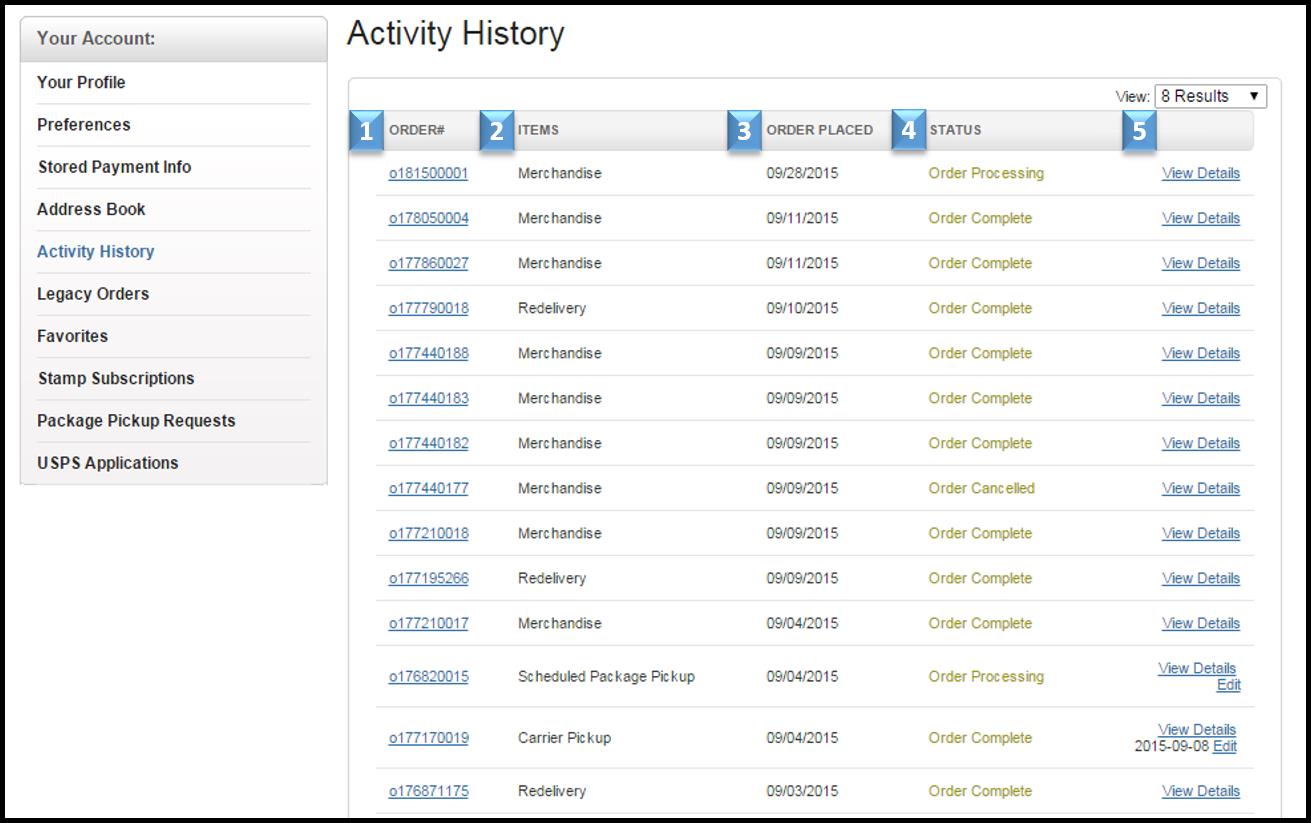 |
- Order number
- Item or service ordered
- Date order was placed
- Status of order
- Link to view additional order details
|
- To see additional details on a specific order, click “View Details” from the list view. The detailed information page provides information about the order number, dates, action (create/update/cancel), name, address, email, instructions, and confirmation number. An edit link is also available that will direct a customer to the cancel/modify page. Information for an order will stay in the Activity History for 1 year.
- Note: It is not possible to delete an item from the Global Account.
Modify a Hold Mail, Redelivery, Schedule a Pickup, or Premium Forwarding Service order from Activity History
- Navigate to your profile
- Click “Activity History” from the left navigation
- Find the order you would like to edit from the list of previous orders and click “View Details”
- Click “Edit” and the system will take you the editable page
- Edit the information necessary for modification
- Click “Make Changes”
- Confirmation page will be displayed with the update and confirmation number. Your confirmation number will also be located in the details of your Activity History. Any modification that is made to an existing order will appear in the Activity History as a new line item.
Cancel a Hold Mail or Schedule a Pickup order from Activity History
- Navigate to your account
- Click Activity History from the left navigation
- Find the order you want to cancel from the list of previous orders and click “View Details”
- Click “Edit” and the system will take you the editable page
- Click “Need to cancel this scheduled pickup?” link
- Click “Yes” to confirm you want to cancel the pickup
- Confirmation page will be displayed with the cancellation and confirmation number. Your confirmation number will also be located in the details of your Activity History. A cancellation that is made to an existing order will appear in the Activity History as a new line item.
Cancel a Premium Forwarding Service order from Activity History
- Navigate to your account
- Click Activity History from the left navigation
- Find the order you want to cancel from the list of previous orders
- Click “Cancel Order”
- Click “OK” on the pop-up box to verify that you want to cancel the Premium Forwarding Service Order
Email Preferences
The Postal Service uses an opt-in marketing program that may be selected in the users account. To stop receiving email notifications from the Postal Service, please edit your profile preferences:
- Click "sign-in" from the top right corner of USPS.com.
- Enter your username and password
- Hover over your name in the upper right corner, then select "My Profile"
- Select "Edit" under your profile information
- Under "Choose Contact Preference", select (or unselect) the checkboxes next to your preferred email communication: From USPS or From USPS Partners
- Select "Continue"
Solving Common USPS.com Website Issues: Clearing Cookies / Cached Files & Supported Web Browsers / Page Not Loading
Cookies are small text files that websites store on computers to remember user data which streamline and personalize your experience, such as: login credentials, site preferences, and shopping cart contents. Cookies allow websites to maintain information on a user as they move from one webpage to another. This enables websites to recognize visitors and serve them based on their user preferences. Internet browsers also store, or cache, data files on your device, such as images or scripts, which helps webpages load faster on your next visit.
Most website performance and visual issues can be corrected by clearing the cache and cookies in your internet browser. If you are experiencing slow browser or website performance, or if websites (such as USPS.com) appear to be "broken" or not functioning as expected, you may need to clear your browser's cache and cookies. This typically fixes errors where websites aren't loading correctly, ensures you are seeing the latest content when a website has been updated, and frees up space on your device by removing old stored website data. You can clear cache and cookies from most browsers by going into the browser settings or privacy and security menu, or by using the shortcut keys listed below. There are numerous websites available to assist you in clearing your browser's history, cache and cookies, or try the shortcut keys below:
Clearing your cache and cookies
| Operating System | Shortcut | | Windows | Press Ctrl > Shift > Delete keys at the same time | | Mac | Press Command > Shift > Delete keys at the same time | | After clearing your cache/cookies, close and reopen the browser. |
Supported Browsers on USPS.com
All browsers must be the current version or its previous version | | Microsoft Edge® | | Google Chrome™ | | Mozilla® Firefox® | | Safari® |
How USPS uses Cookies
Cookies may be categorized as session or persistent, which describes the length of time that they stay on your system. Both session and persistent cookies are used on this site. The following are detailed descriptions of how we use these cookies.
Session Cookies
A session cookie is a small piece of textual information that a server places temporarily on your browser during the time your browser is open. The cookies are erased once you close all browsers. We use session cookies in the following manner:
-
Log-on and log-off administration — If you decide to register with our site to use one of our online services, session cookies help with the log in and log out process. The cookies enable us to recognize your log in information so that we do not establish a duplicate registration record for you.
-
Transactions and site usability — We use session cookies to improve how you navigate through usps.com and conduct transactions. As examples, session cookies are used to maintain your online session as you browse over several pages; to store and prepopulate information so that you do not have to reenter the same information twice; to enable the postage rate calculator; and to retain your shopping cart information. Session cookies may also be used to collect referral statistics when you click on a link or ad banner to or from usps.com.
Persistent Cookies
A persistent cookie is a small piece of text stored on your computer's hard drive for a defined period of time, after which the cookie is erased. We do not collect or link to personal information through persistent cookies without your express consent. We use persistent cookies as follows:
-
Site usage measurement — Our site measurement tool uses a persistent cookie to assist us in measuring how and when our website and its various components are used. It functions as a "visit cookie," so that we can determine if you are a repeat visitor to our site. This allows us to know if we are attracting new visitors and what aspects of the site seem most useful. The cookie will expire 30 days after your last visit.
-
Log-off safety function — The USPS uses a persistent cookie to automatically log you off of usps.com if there has been no activity for 15 minutes. This is done for your safety to ensure that no one else can use your computer to access your account if you forgot to log off. The cookie is permanently removed from your computer when you log off, or, if you have closed the browser without logging off, it is removed within 15 minutes from your last activity.
-
Opt-in cookies — Persistent cookies allow us, at your request, to recognize you when you return to usps.com, or to remember certain information that you have provided us. The recognition feature allows you to log on to usps.com automatically, without having to enter your name and password each visit. The cookie assigns a random number to you, which we link to personal information you have provided and your purchase history. This allows us to personalize the site for you and tailor the content to your needs, for instance to show you other products you may be interested in. Other cookies allow us to remember certain information related to prior transactions, such as package tracking numbers, or mailing or address lists, so that we may prepopulate those fields for you on return visits. These features and cookies are strictly at your option and for your convenience. We will also present you with a convenient way to remove the cookies, via where you manage your account, if you decide later that you want to terminate one or more of these functions. The cookies will expire one year from your last visit.
-
Ad banner cookies — On behalf of the USPS, persistent cookies and beacons (described below) may be set and managed by third party advertising suppliers to support ad banners. Ad banner cookies are set when you view or click on an ad banner on usps.com, or an ad banner on another site for a USPS product, and persist for no more than five years.
Web Beacons
A Web beacon, also referred to as a clear gif or page tag, consists of code on the USPS site that delivers a small graphic image from another Web site or third party server. They may not be visible as the beacon is generally a 1x1 pixel that is often designed to blend into the background of a Web page.
We use beacons, often in conjunction with cookies, to monitor the effectiveness of ad banners; and to gather general log, statistical, and referral information. We do not use beacons to store or link to personal information. We thus use beacons to understand certain actions that you took (such as a purchase), but not to know who you are.
Opting Out of Cookies
If you have concerns about cookies, you may choose to opt out of their use.
Ad banner cookies — You can opt out of ad banner cookies, without erasing or altering other cookies. If you opt out of these cookies, we will no longer track any information from ad banners related to a specific user's visit. By clicking below, you will be taken to a third party site that explains how to opt out.
Click here to learn how to opt out of ad banner cookie.
Opting out of all cookies – You may choose to opt out of the use of all cookies. You will still be able to access most features of usps.com. However, certain features may not work as well or may be unavailable to you. You will not be able to register or purchase from usps.com because we need cookies to keep track of your shopping cart and to process your transaction.
Click here to learn how to opt out of all cookies.
Click here to see our full Privacy Policy.
|
|
|---|


